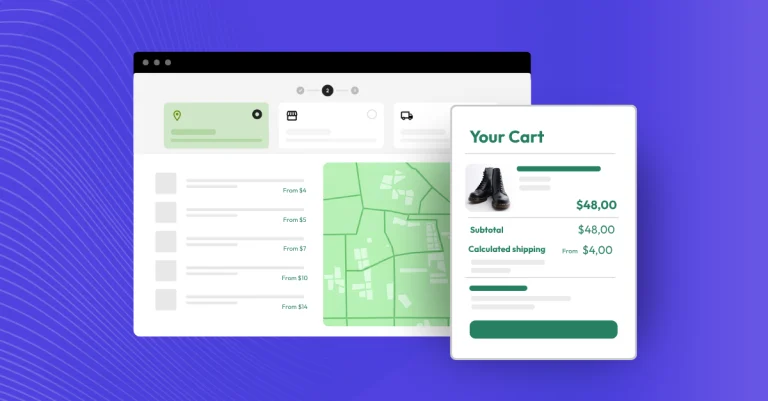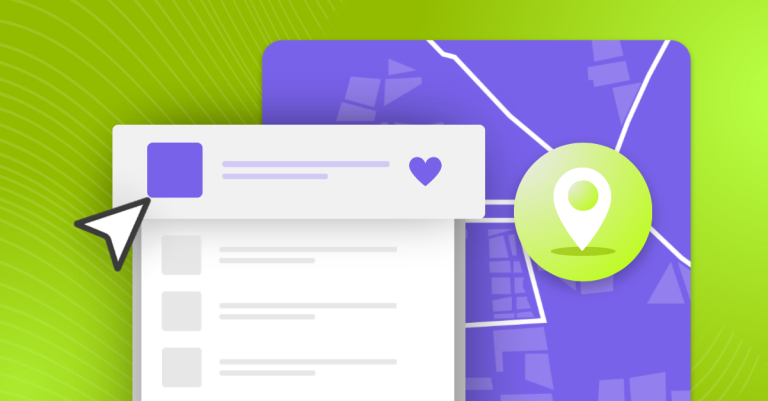
“How much will delivery cost?” Give shoppers an earlier answer. You can now show shipping costs before checkout on PickupBird’s Smart Delivery Page or on the Cart page, with starting prices displayed on the pickup point map and in the cart summary after a pickup point is selected.
The new shipping price display brings cost information into the same space where customers choose their pickup point. Prices always use a “From…” format, helping shoppers understand that they are viewing a starting price.
You decide where that information appears. The map display and the summary display can be enabled separately, so you can choose the combination that suits your store.
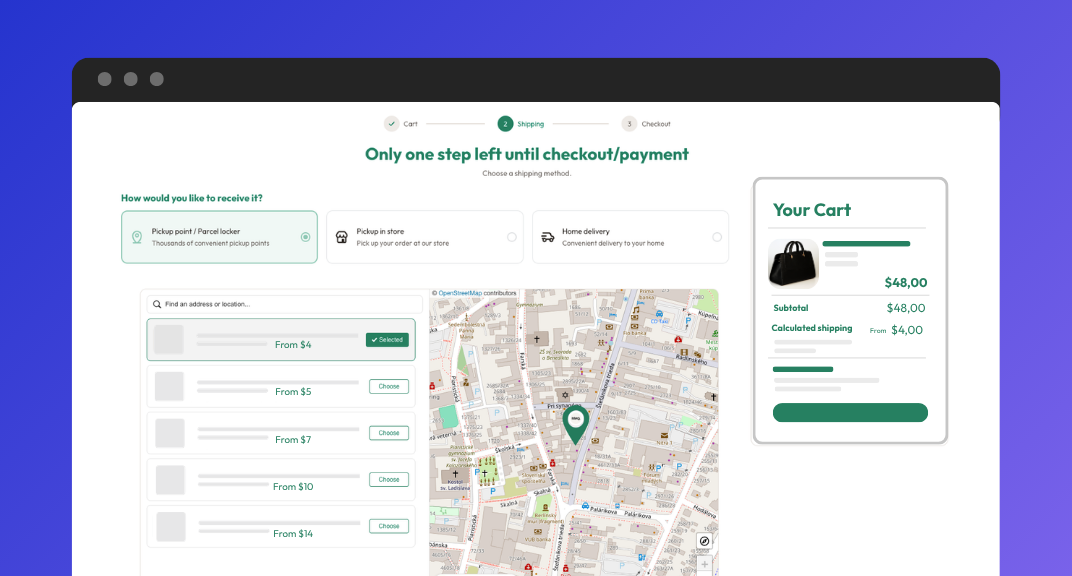
Shipping Prices Where Customers Choose a Pickup Point
PickupBird’s Smart Delivery Page gives delivery selection its own space between Cart and Checkout. Customers can choose a pickup point while keeping their cart summary in view.
The new price display adds another useful detail to that decision: the starting shipping cost. Customers can see price information while browsing pickup options or review it alongside their products once they have selected a location.
There are two display options:
- On the pickup point map: Show starting prices within the map interface while customers browse pickup options.
- In the cart summary: Show the starting shipping price on the right-hand side of the Smart Delivery Page after the customer selects a pickup point.
Each option has its own control. Enabling one does not require you to enable the other. The new shipping price display can be enabled on the Cart page as well.
Showing the Lowest Shipping Costs
Shipping prices are always shown using “From…” pricing. The amount communicates a starting price rather than a guaranteed final shipping charge.
For example, a displayed price of “From $3.99” tells the customer that shipping starts at that amount. The final shipping fee is calculated at Checkout.
Customers get an indication of shipping costs earlier in their purchase journey, while Checkout confirms the exact amount they will pay.
How the Price Display Fits the Shopping Journey
When both displays are enabled for your store, the customer journey looks like this on the Smart Delivery Page:
- Open the Smart Delivery Page. The customer reaches the delivery selection page between Cart and Checkout.
- Browse pickup options. Starting shipping prices appear within the pickup point map interface.
- Select a pickup point. The starting shipping price also appears in the cart summary.
- Continue to Checkout. The customer proceeds with their selected pickup point and reviews the final shipping fee.
If you enable only the summary display, the starting shipping price appears there after selection. If you enable only the map display, price information appears within the map interface.
Choose Where Shipping Prices Appear
Want to show shipping costs before checkout alongside the customer’s products? Enable the summary display. Want to include starting prices while customers browse pickup options? Enable the map display.
The two settings work independently, giving you control over where customers see shipping price information on your Smart Delivery Page or on the Cart page.
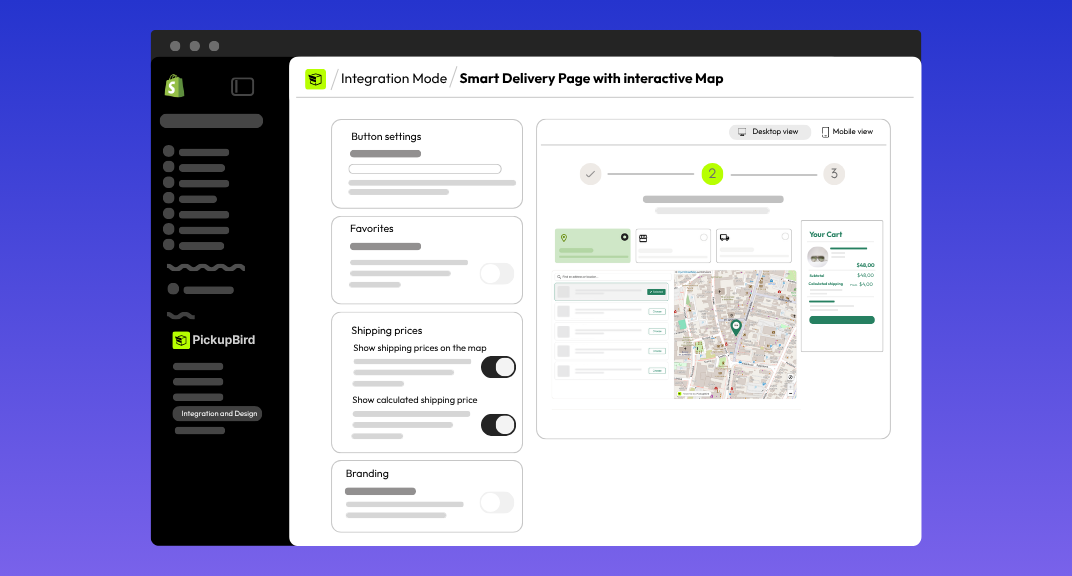
How to Show Shipping Prices?
The settings for the shipping price display can be found in the Integration and Design menu of PickupBird. Choose the “Smart Delivery Page with Interactive Map” option or the “Interactive map display on Cart” option, scroll down, and find the “Shipping prices” field to enable the display option you prefer.
Bring Shipping Costs Into the Delivery Decision on Shopify
A pickup point’s location is one part of the choice. Shipping cost is another. With PickupBird’s new price display, you can bring both into the Smart Delivery Page and the Cart page and help customers make a more informed decision before they continue to Checkout in your Shopify store.
Already using PickupBird? Explore the shipping price display options for your Smart Delivery Page or Cart page.
New to the app? Discover PickupBird on the Shopify App Store and add pickup point selection to your store’s checkout flow.
Frequently Asked Questions
Can I show shipping costs before Shopify checkout with PickupBird?
Yes. PickupBird’s Smart Delivery Page and the Cart page can display starting shipping prices in your Shopify store within the pickup point map interface and in the cart summary after a pickup point is selected.
When does the shipping price appear in the Shopify cart summary?
When the summary price display is enabled, the starting shipping price of pickup points appears after the customer selects a pickup point on the Smart Delivery Page by PickupBird.
Can I enable the map and summary price displays separately in PickupBird?
Yes. The two displays can be enabled independently in the PickupBird Pickup Points Shopify app. You can show starting shipping prices only in the summary, only on the map if your store is eligible, or in both places.